
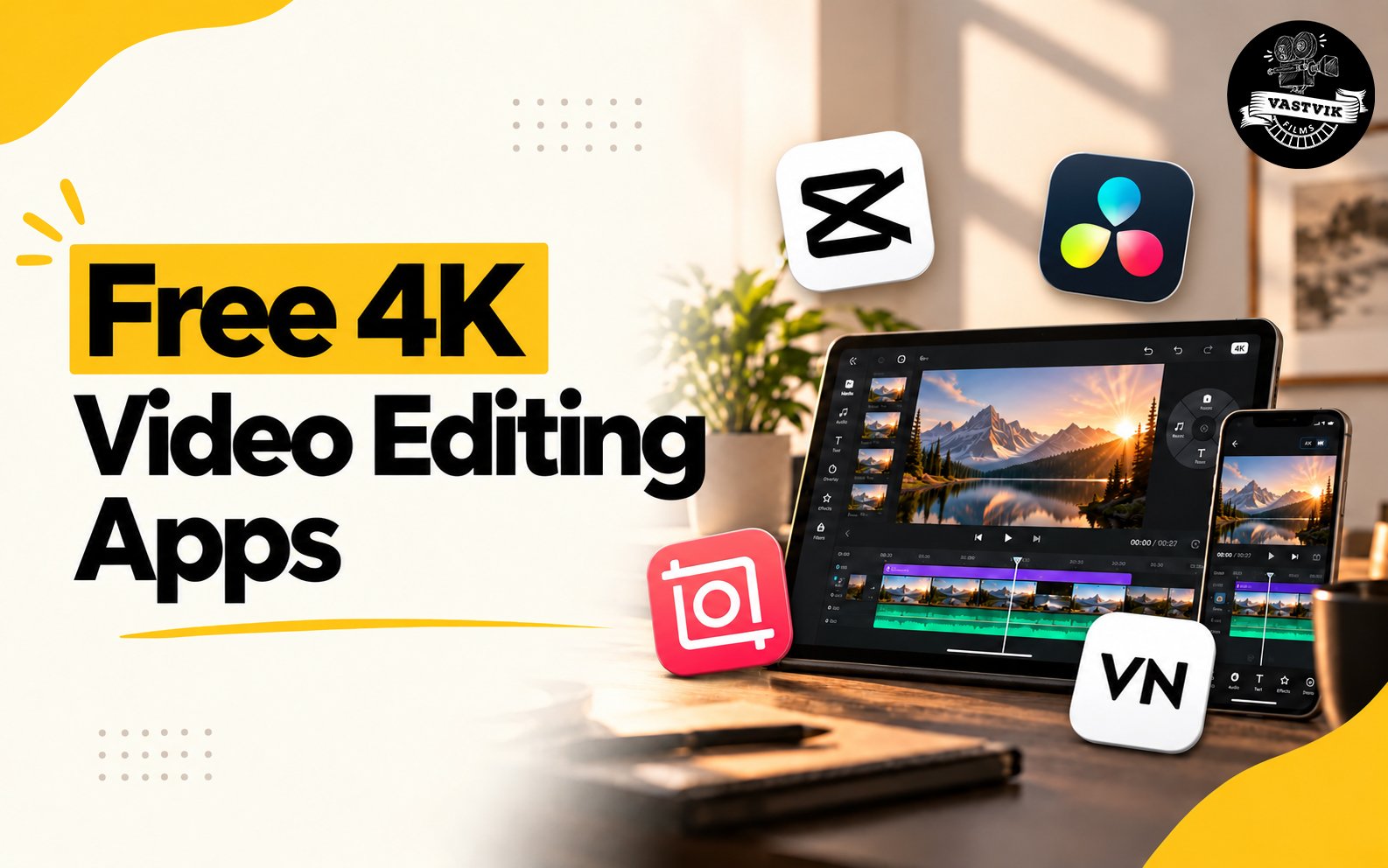
Free 4K Video Editing Apps: What Really Works in 2026
You shot a video on your phone, spent two hours editing, and tapped Export in 4K. The result? A soft, grainy file with a logo in the corner, or worse, a video that quietly came out at 1080p.
If that sounds familiar, you’re not alone. Free 4K video editing apps have improved massively, but the “4K” button doesn’t always mean what you think it does. In this guide, we break down which apps can genuinely deliver 4K, what the catch is on each, how to check your file in two minutes, and when it’s time to hand the job to a professional video production house.
What “4K” Really Means (It’s Four Checks, Not One)
Before comparing apps, know what you’re actually looking for. A video must pass all four of these tests:
1. Resolution: True 4K (UHD) is 3840 x 2160 pixels. Labels like 2K or 1440p don’t count.
2. Frame rate: Some apps offer 4K at 30fps but hide it when you choose 60fps.
3. Watermark: A corner logo, branded end card, or template branding changes what you deliver to a client.
4. Source quality: If your original clips are 1080p, exporting at 4K only stretches the pixels. The file gets bigger, not sharper.
An app can pass three of these and still disappoint you on the fourth.
Best Free 4K Video Editing Apps in 2026
Here are the apps that can export real 3840 x 2160 video without a paid plan, based on each company’s current documentation. Free tiers change often, so always verify before a client deadline.
1. VN: Cleanest Free 4K Option
VN exports up to 4K at 60fps with no watermark and no export limit, according to its App Store listing. It’s the easiest recommendation for creators who want a clean file without paying. The only limit is your phone: mid-range Android devices may stop at 1080p or 2K.
2. Adobe Premiere (Mobile): Free, Unlimited, No Watermark
Adobe says its free mobile app includes unlimited 4K exports with no watermark. It is now available on Android too, which needs Android 13 or later with at least 5GB of RAM. You’ll need an Adobe account; some AI and stock features use paid credits, and it’s worth checking the export panel every time, since it can default to a social-media 1080p preset.
3. DaVinci Resolve for iPad: Best for Colour
If colour grading matters to you, DaVinci Resolve for iPad is the most professional free option, with a 4K UHD export ceiling and no watermark. The trade-off is that it needs a powerful iPad and some comfort with codecs and delivery settings.
4. CapCut: Free 4K With Conditions
CapCut can export clean 4K, but only if you avoid Pro-marked assets, branded templates, and the automatic ending outro. Whether the 4K option appears at all depends on your phone’s hardware, as CapCut’s own help page explains.
5. InShot: 4K Is Free, Clean Files Cost an Ad
InShot lets you export 4K at up to 60fps for free, but adds its logo and end card. You can remove them per project by watching an ad, and that repeats on every export.
Quick Comparison
| App | Free 4K? | Watermark | Best for |
|---|---|---|---|
| VN | Yes, up to 60fps | No | Everyday creators |
| Adobe Premiere (mobile) | Yes, unlimited | No | Clean, unlimited exports |
| DaVinci Resolve (iPad) | Yes (UHD) | No | Colour grading |
| CapCut | Device dependent | Only with Pro assets, templates, or outro | Fast social edits |
| InShot | Yes | Yes (ad to remove) | Quick, simple edits |
Apps that look free but fall short: Some tools cap free exports below 4K or brand the output. Canva’s free MP4 download, for example, tops out at 1080p. Filmora’s mobile free tier is limited to 720p with a watermark, and PowerDirector restricts some export options and branding on its free tier. Don’t trust the export menu; check the actual file.
Why Your Phone May Not Show a 4K Option
Often the problem isn’t the app. It’s your device.
⦁ Hardware encoder limits: Many mid-range Android phones only offer 1080p or 2K in editing apps, while flagships and recent iPhones show 4K.
⦁ Frame rate conflicts: Choosing 60fps can push a phone past its limit and silently remove 4K. Try 30fps first.
⦁ Project settings: Many editors inherit the resolution of the first clip you import. One 1080p clip can lock the whole timeline.
⦁ Saved presets: Apps often reapply a social preset to new projects. Check the resolution every time.
⦁ Low storage: A failed render can fall back to lower quality. Keep several GB free
4K Storage, Codecs, and Heat: What Most Guides Skip
⦁ Storage: Plan roughly 350 to 500 MB per minute of 4K H.264 video, plus scratch space while rendering.
⦁ H.265 (HEVC): Smaller files, but older phones and laptops can struggle to play them. If a client can’t open your video, export in H.264.
⦁ Bitrate: A 4K file at a very low bitrate can look worse than a well-encoded 1080p one. As a rough guide, 4K under about 20 Mbps has been heavily compressed.
⦁ Heat: Long 4K renders make phones throttle, which slows exports and can hurt quality. Remove the case, avoid rendering while fast charging, and split long timelines into segments.
The 60-Second Test Before You Render
Run this before every big export:
1. Export a 10-second sample.
2. Open the file details and confirm 3840 x 2160 and the correct frame rate.
3. Watch the last second full screen for a hidden outro or logo.
4. Pause on a still frame and zoom in. Soft edges mean the footage wasn’t truly 4K.
5. Only then render the full video.
It takes two minutes and can save you hours.
Do You Actually Need 4K?
Not always. Here’s a simple way to decide:
• Instagram Reels, Shorts, WhatsApp Status: A clean, high-bitrate 1080p vertical video is usually enough, since platforms recompress everything anyway.
• YouTube, website banners, LED screens, TV playback: 4K is worth the render time.
• Footage you may crop or reframe later: Shoot and export in 4K so you can zoom in without losing detail.
• Long videos on older phones: Export in segments and join them afterwards.
When resolution and bitrate compete, a high-bitrate 1080p export often looks better than a starved 4K one.
Where Free Apps Stop and Professionals Begin
Free editors are perfect for quick social posts, internal updates, and testing ideas. But no export setting can fix what went wrong before the edit:
⦁ Lighting and sound: Poor light and noisy audio are the biggest giveaways of amateur video.
⦁ Cameras and lenses: Real 4K detail comes from the sensor, not the software.
⦁ Direction and performance: Framing, pacing, and getting natural expressions from people on camera.
⦁ Colour grading and sound design: These are what make a video feel premium.
⦁ Strategy and scripting: A video that sells has a hook, a clear message, and a purpose.
If the video represents your business, such as a corporate film, ad film, real estate walkthrough, or e-learning course, working with a video production house in Mumbai or a videography service in Chandigarh often costs less than reshooting something that didn’t land. Vastvik Films, for example, makes corporate videos and ad films for businesses in both cities.
What to Ask Before Hiring a Video Production Company
If you decide to go professional, these questions help you compare fairly:
1. Can I see work similar to my industry (corporate, ad, real estate, e-learning)?
2. What resolution and formats will I receive, and do you provide platform-ready cuts?
3. Who owns the raw footage and final files?
4. How many revision rounds are included?
5. What’s the timeline from concept to delivery?
6. Do you handle scripting, voiceover, and music licensing?
A good team answers these clearly. It’s also the fastest way to spot who’s serious.
Frequently Asked Questions
⦁ Does CapCut add a watermark to free 4K exports?
Not on standard exports. Branding appears when you use Pro assets, branded templates, or leave the ending outro on.
⦁ Why does my 4K export come out at 1080p?
Usually your phone’s encoder doesn’t support 4K in that app, 60fps removed the option, or a 1080p clip set the project resolution. Check project settings, then try 30fps.
⦁ Which free apps export 4K without a watermark?
VN, Adobe Premiere (mobile), and DaVinci Resolve for iPad, plus CapCut if you avoid branded assets and the outro. All need a device that supports 4K encoding.
⦁ Is a 1080p clip exported at 4K really 4K?
The file measures 3840 x 2160, but no new detail is added. It looks soft, and the file is much larger.
⦁ Do I need 4K for Instagram and YouTube Shorts?
Rarely. A clean 1080p vertical video is usually enough. Use 4K for YouTube long-form, large screens, and footage you may crop.
⦁ When should a business hire a professional video production company?
When the video represents your brand, drives sales, or needs lighting, sound, direction, and strategy that an app can’t provide.
Final Thoughts
Free 4K editing is real in 2026, but only if you verify the file instead of trusting the export button. Use free apps for speed and experiments. For videos that carry your brand’s reputation, invest in the shoot first and let the editing app be the final step.
Planning a corporate video, ad film, or brand shoot in Mumbai or Chandigarh? Talk to the team at Vastvik Films and let’s turn your idea into a video that actually performs.